SHARKWARE CONNECTION HELP · REVIEW / SUPPORT TEST
Controller not found?
Connect using its Bluetooth address.
If Sharkware does not automatically find your Trigger controller, this guided tool can save its Bluetooth address and check the required helpers.
Download access: use your existing Sharkware licence with Trigger access on the website. The MAC address is entered later in the tool to select your controller. It is not your download-access code.
1. Get ready
- Park safely and leave the Shark powered on. Power your controller.
- You need a Windows computer or Mac, plus an Android phone for this address-reading method. A borrowed Android phone is fine.
- Sharkware must already be installed and activated through its normal installation process. The tool stops if Sharkware is not installed; it will not install helpers or change settings.
- Connect the computer and Shark to the same Wi-Fi network or hotspot. Wireless ADB must already be enabled using the Sharkware installation instructions.
This support build is for BYD AUTO head units running Android 11. Windows includes its required runtime. Mac requires Python 3.9 or newer; if missing, install it from python.org.
2. Find the address on the Android phone
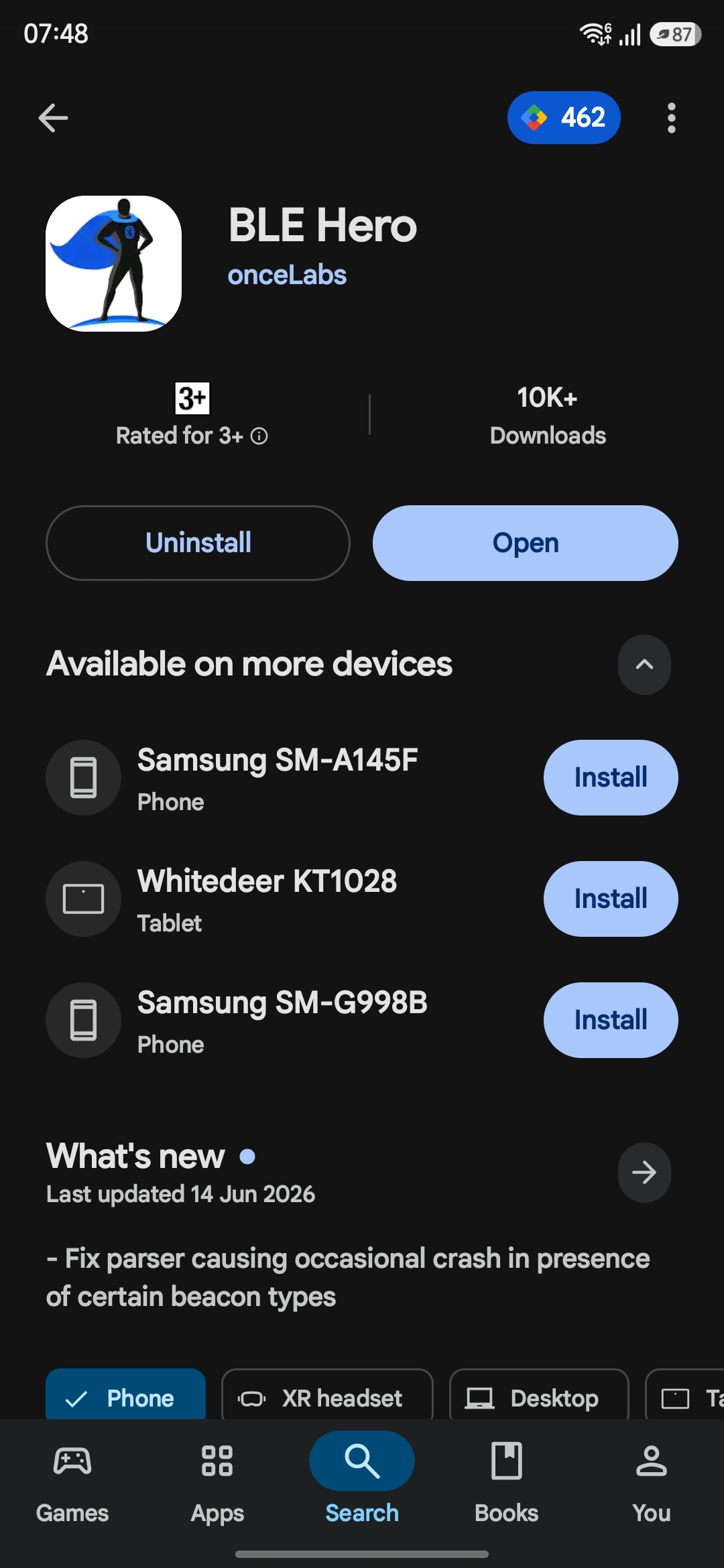
- Install BLE Hero by onceLabs from Google Play.
- Turn on Bluetooth and grant the app its requested Nearby Devices / location permissions for scanning.
- Open BLE Hero, go to its device discovery view and start scanning near your powered controller.
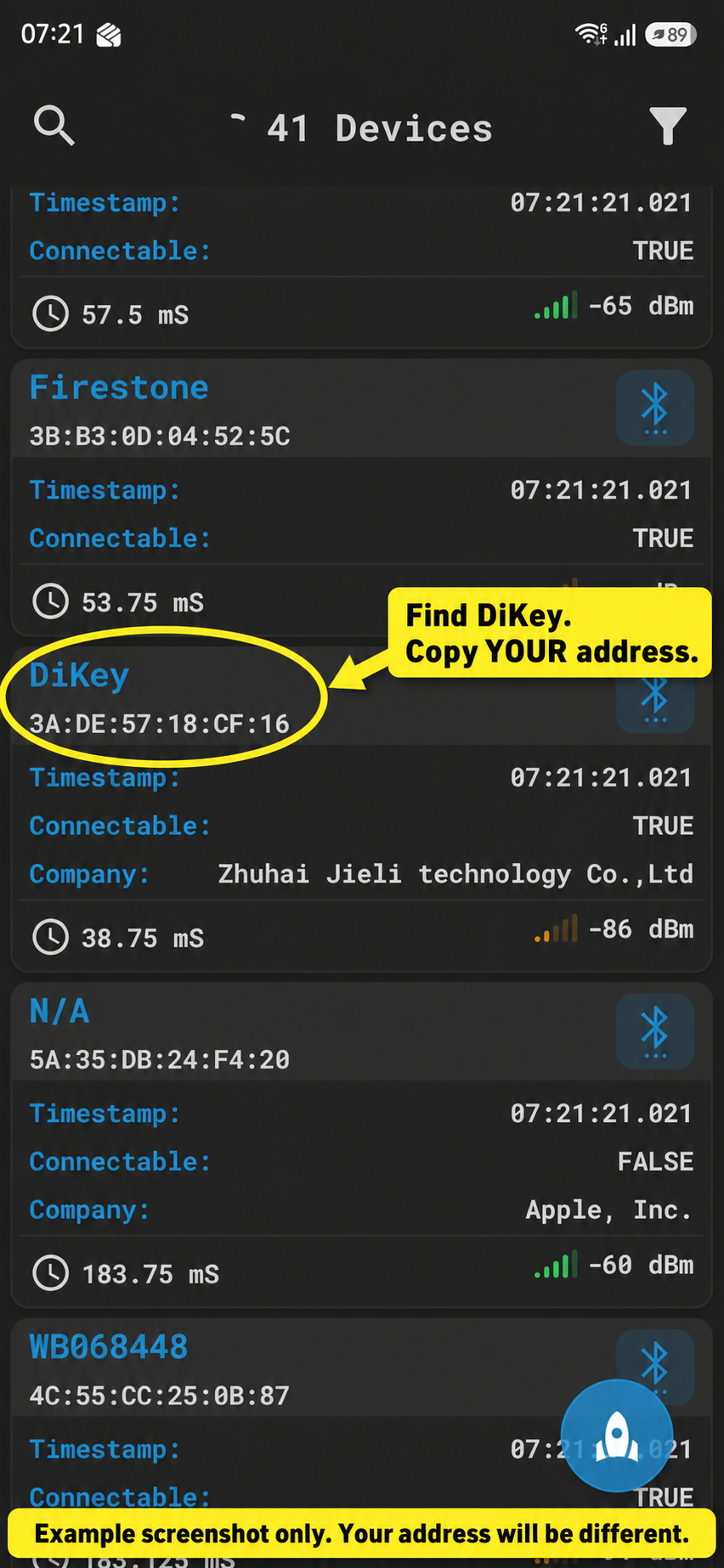
- Find DiKey. Write down the address immediately underneath it: six pairs of letters/numbers separated by colons.
- Use your own address. Do not copy the example address below. You do not need the manufacturer data or any long UUID.
- After writing down your controller’s MAC address, turn Bluetooth off on the Android phone before running the computer tool. Leave Bluetooth on in the Shark.
If there is more than one DiKey nearby, identify yours by powering only your controller and scanning again. If the phone cannot see it, stop here and contact support; do not guess an address.
3. Run the diagnostic tool
- Download the package from the Trigger-access-protected website area, then extract the entire ZIP.
- Windows: open
START_WINDOWS.cmd.
Mac: openSTART_MAC.command. If macOS blocks it, use the normal Open / Privacy & Security approval for this downloaded file. Do not turn off system security. - On the Shark, open its Wi-Fi connection details and find its IPv4 address. Enter that address when the tool asks for Shark Wi-Fi IPv4 address.
- Accept the computer's debugging authorisation on the Shark if prompted. Rerun the tool after accepting if the first connection stops.
- When asked for DiKey Bluetooth address, enter the MAC address from BLE Hero. Check every pair carefully.
- Review the address and repair description. Type y to proceed.
The tool backs up existing app files and settings, checks the installed versions, replaces older compatible versions of Sharkware and its two hidden helpers, and saves the selected address. It does not uninstall apps or clear your existing licence and settings. A version/signature mismatch stops the repair rather than deleting anything.
4. Reconnect after helper installation
If the tool installed or replaced helpers: keep phone Bluetooth off, unplug the controller and plug it back in, then allow Sharkware to reconnect. This step was needed in our reinstall test.
CONNECTED means the helper reports that the selected controller is ready. Test a button in Sharkware, then unplug and reconnect the controller to check automatic reconnection.
ADDRESS SAVED, CONNECTION NOT CONFIRMED means the tool has not confirmed a working connection. Check the address, turn Bluetooth off on the phone, then unplug the controller and plug it back in. Reopen Sharkware and allow it to reconnect. This power cycle may be needed after a helper update. Contact support if it still fails.
STOPPED means a check failed. Keep the error message; do not uninstall Sharkware or clear its data.
Backups are saved in SharkwareSupportBackups inside your computer user folder. They contain private settings: keep them private and send only the error message or RESULT.txt initially.